> ## Documentation Index
> Fetch the complete documentation index at: https://moengage-docs-limits-api.mintlify.site/llms.txt
> Use this file to discover all available pages before exploring further.

# Perform User Distribution Dynamically using Merlin AI

> Use Merlin AI to dynamically distribute users across A/B test variations in MoEngage, optimizing for open rate, click rate, or both metrics.

<Note>
  Available for all Push, Email, In-App Messages, and Onsite Messages.
</Note>

# Procedure

Follow these steps:

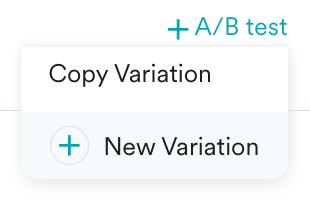
1. In Step 2 of the campaign creation process, click **+ A/B test**.

2. Click New Variation to create the new variation.\
   OR\
   Click Copy Variation to copy the previously created variation.

   <img alt="A_B_Testing_Options.png" src="https://mintcdn.com/moengage-docs-limits-api/OQfcajUnf4eAVs3r/images/moengage_17342b.png?fit=max&auto=format&n=OQfcajUnf4eAVs3r&q=85&s=47ecc3df0d661cf0b49cb537df4499bf" width="310" height="208" data-path="images/moengage_17342b.png" />

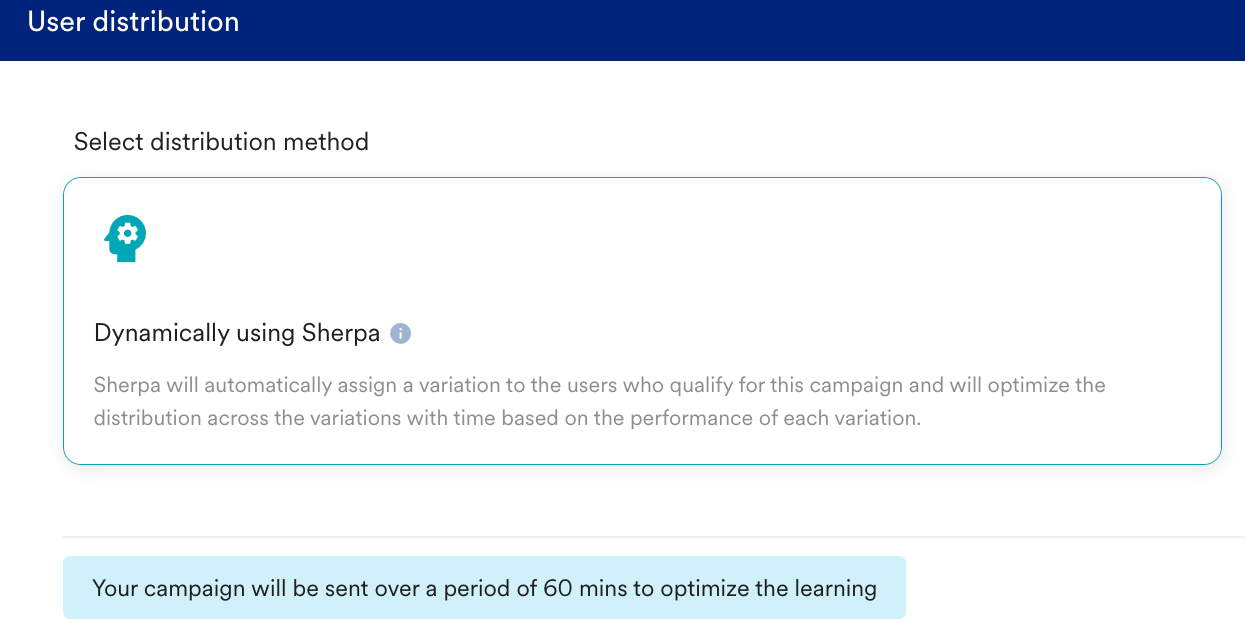
3. Click **User distribution**.

4. Click Dynamically using Merlin AI.

   <img alt="UserDistribution_Sherpa.png" src="https://mintcdn.com/moengage-docs-limits-api/_jmGQHMQkaTkVSJJ/images/moengage_374bde.png?fit=max&auto=format&n=_jmGQHMQkaTkVSJJ&q=85&s=a5ffcf1ad3f377774def03e281342552" width="1245" height="629" data-path="images/moengage_374bde.png" />

5. Select the Metrics to be maximized.

   <table>
     <thead>
       <tr>
         <th>Metric</th>
         <th>Description</th>
       </tr>
     </thead>

     <tbody>
       <tr>
         <td colspan="2" align="center"><strong>Email</strong></td>
       </tr>

       <tr>
         <td>Open Rate</td>
         <td>Select to optimize the distribution across different variations based on the email open rate by each variant.</td>
       </tr>

       <tr>
         <td>Click rate</td>
         <td>Select to optimize the distribution across different variations based on the click rate by each variant.</td>
       </tr>

       <tr>
         <td>Both</td>
         <td>Select to optimize the distribution across different variations based on both email open rate and email click rate by each variant.</td>
       </tr>

       <tr>
         <td colspan="2" align="center"><strong>In-App Message and Onsite Message</strong></td>
       </tr>

       <tr>
         <td>Conversion</td>
         <td>Select to optimize the distribution across different variations based on the click-through rate of each variant.</td>
       </tr>

       <tr>
         <td>Engagement</td>
         <td>Select to optimize the distribution across different variations based on the conversion rate of each variant.</td>
       </tr>

       <tr>
         <td>Revenue</td>
         <td>Select to optimize the distribution across different variations based on the revenue generated by each variant.</td>
       </tr>
     </tbody>
   </table>

6. In Campaign duration, select 2 hours or 4 hours to set the Campaign duration for Email Campaigns.

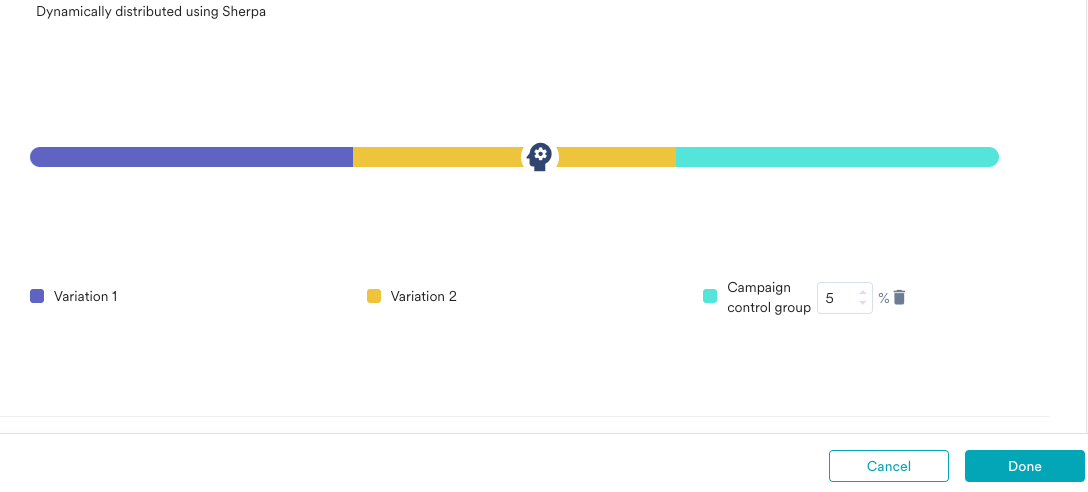
7. Set the following:

   | Field                  | Description                                                                                                                                                                                                                                                                                                               |
   | ---------------------- | ------------------------------------------------------------------------------------------------------------------------------------------------------------------------------------------------------------------------------------------------------------------------------------------------------------------------- |
   | Objective (Optional)   | Objective of experiment. <br /><br />**Note**: Applicable only to In-App Message, On-Site Message, and Web Personalization.                                                                                                                                                                                               |
   | Variation              | Modify the variation name for the campaign variation. (Applicable only for In-App, On-Site Messaging, and Web Personalization). <br /><br />**Note**: You can create only up to five variations.                                                                                                                          |
   | Campaign control group | Set the percentage of users who will receive the campaign. <br /><br />**Note**: MoEngage does not guarantee receipt of campaigns the second time where:<br />• Users belong to either global control group or campaign control group for any active campaign,<br />• Users are qualified to receive the campaigns twice. |

   <img src="https://mintcdn.com/moengage-docs-limits-api/cvPR1zLuOyYqjSoB/images/moengage_692018.png?fit=max&auto=format&n=cvPR1zLuOyYqjSoB&q=85&s=c4b3b7dd7a4caa9b99314bff6bd27ef8" alt="DynamicAllocation.png" width="1088" height="492" data-path="images/moengage_692018.png" />

8. Click Done to save the campaign variations.\
   OR\
   Click Cancel to discard the campaign variations.

<Info>
  Campaigns, where the user distribution is performed by Merlin AI, have the <img alt="Powered_by_Sherpa.png" src="https://mintcdn.com/moengage-docs-limits-api/KcH7nSBQq5kJ2Bfe/images/moengage_d428d2.png?fit=max&auto=format&n=KcH7nSBQq5kJ2Bfe&q=85&s=cef438bfdcd811131345a401bbb66fc6" width="43" height="45" data-path="images/moengage_d428d2.png" /> icon in the Campaign Status on the All Campaigns page.
</Info>

# Next Steps

* [Perform User Distribution Manually](/user-guide/ai-and-intelligence/ab-testing/create-multivariate-testing/perform-user-distribution-manually)
* [Edit Multivariate Experiments](/user-guide/ai-and-intelligence/ab-testing/create-multivariate-testing/edit-multivariate-experiment)

All MoEngage AI products, which were previously referred to as *Sherpa AI*, are now known as *Merlin AI*.